User manual
Answers to the questions people actually ask, in plain language. No accounting or legal background needed — if a term sounds like jargon, it's explained the first time it appears.
First: turn on hover help
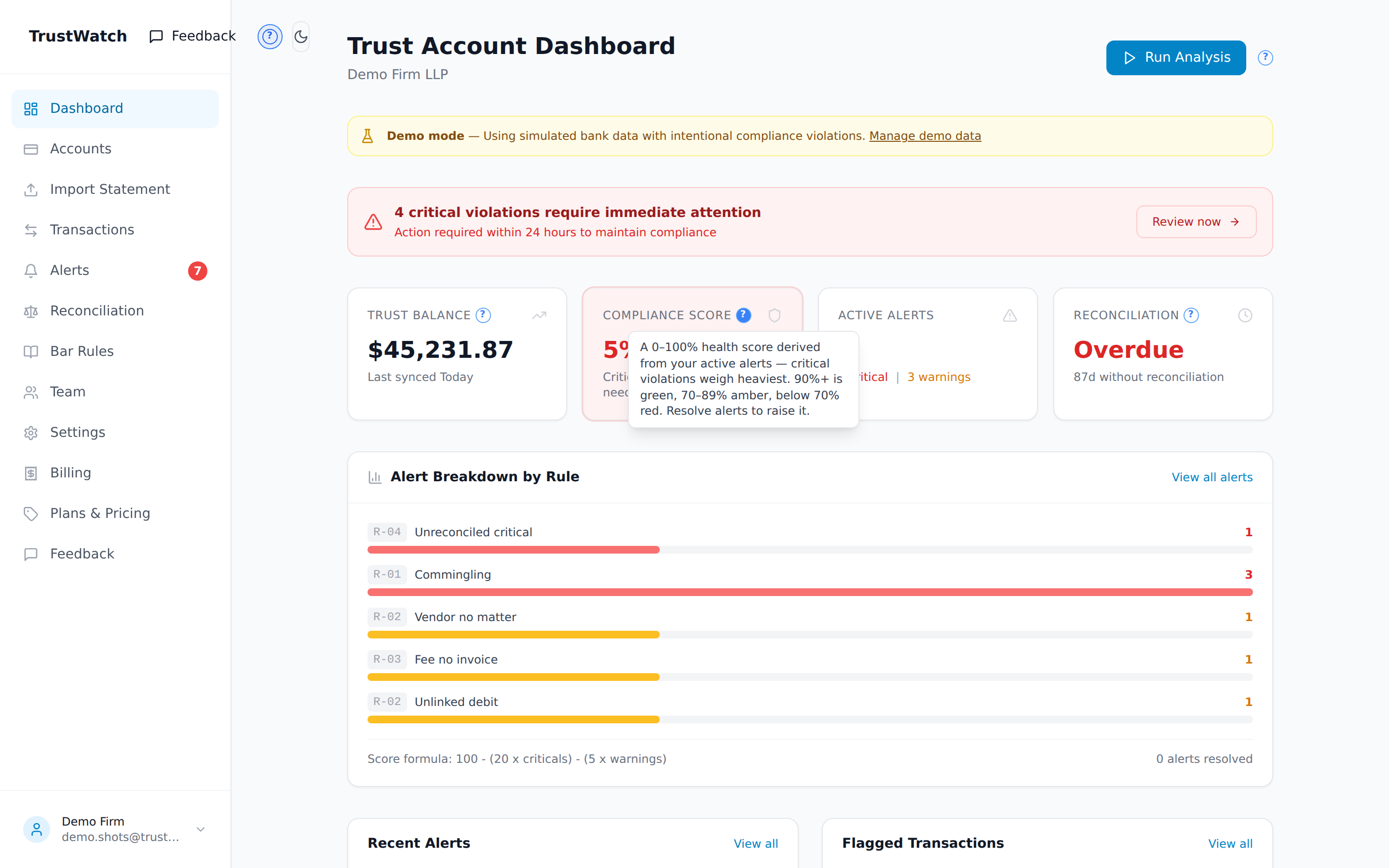
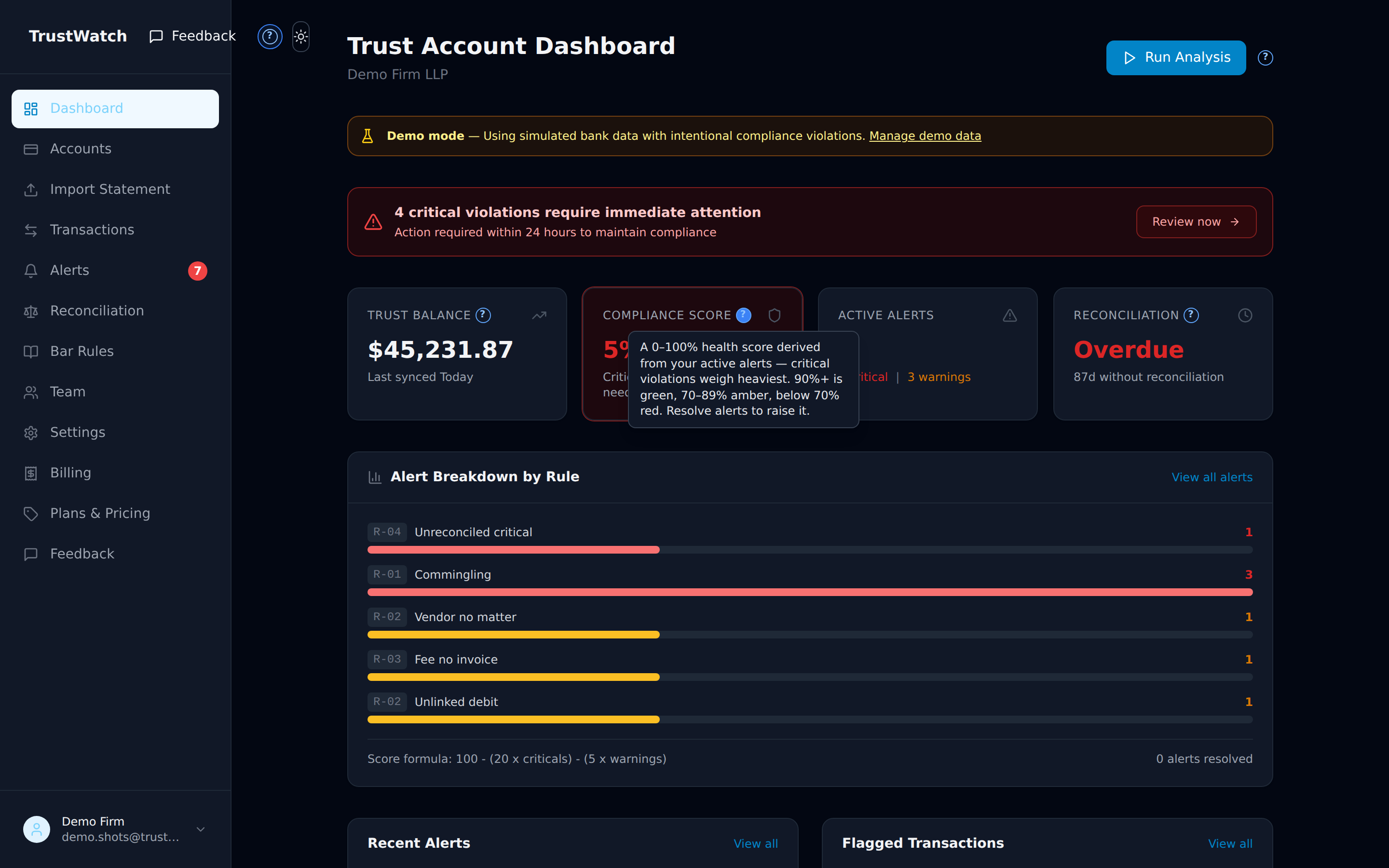
The fastest way to learn TrustWatch is inside TrustWatch. At the top of the left sidebar (next to the TrustWatch logo) there is a small round ? button. Click it once and little ? markers appear beside the important buttons and numbers across the app. Hover (or tap) any marker and it tells you, in one or two plain sentences, what that thing does and what to do about it.
It stays on until you turn it off, and it never changes any data — it's just labels. If you only remember one thing from this page, make it this button.
The five words you need
Everything in TrustWatch uses these five terms:
- Trust account (IOLTA) — the bank account that holds clients' money: retainers, settlements, funds held for a case. It is not the firm's money.
- Operating account — the firm's own checking account: rent, payroll, earned fees. Keeping these two strictly separate is the whole point of trust compliance.
- Matter — a client's case or file (e.g. Smith v. Jones). Every dollar that leaves the trust account should be traceable to a matter.
- Three-way reconciliation — the regular check that three numbers agree: what the bank says, what your ledger says, and what all the per-client balances add up to.
- Alert — TrustWatch's flag that something looks off. An alert is a "please look at this", not a verdict — an attorney always makes the final call.
How do I get my transactions in?
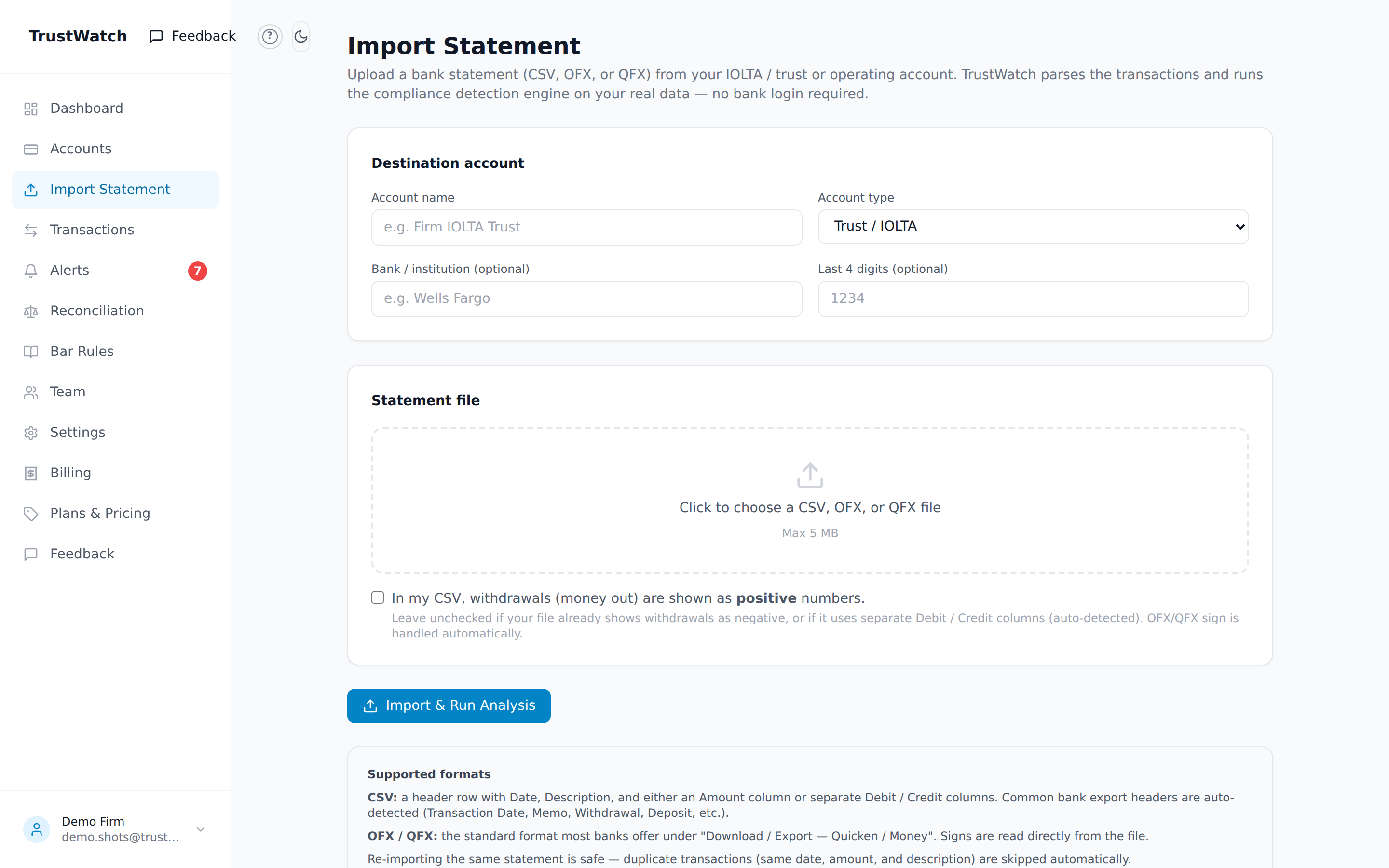
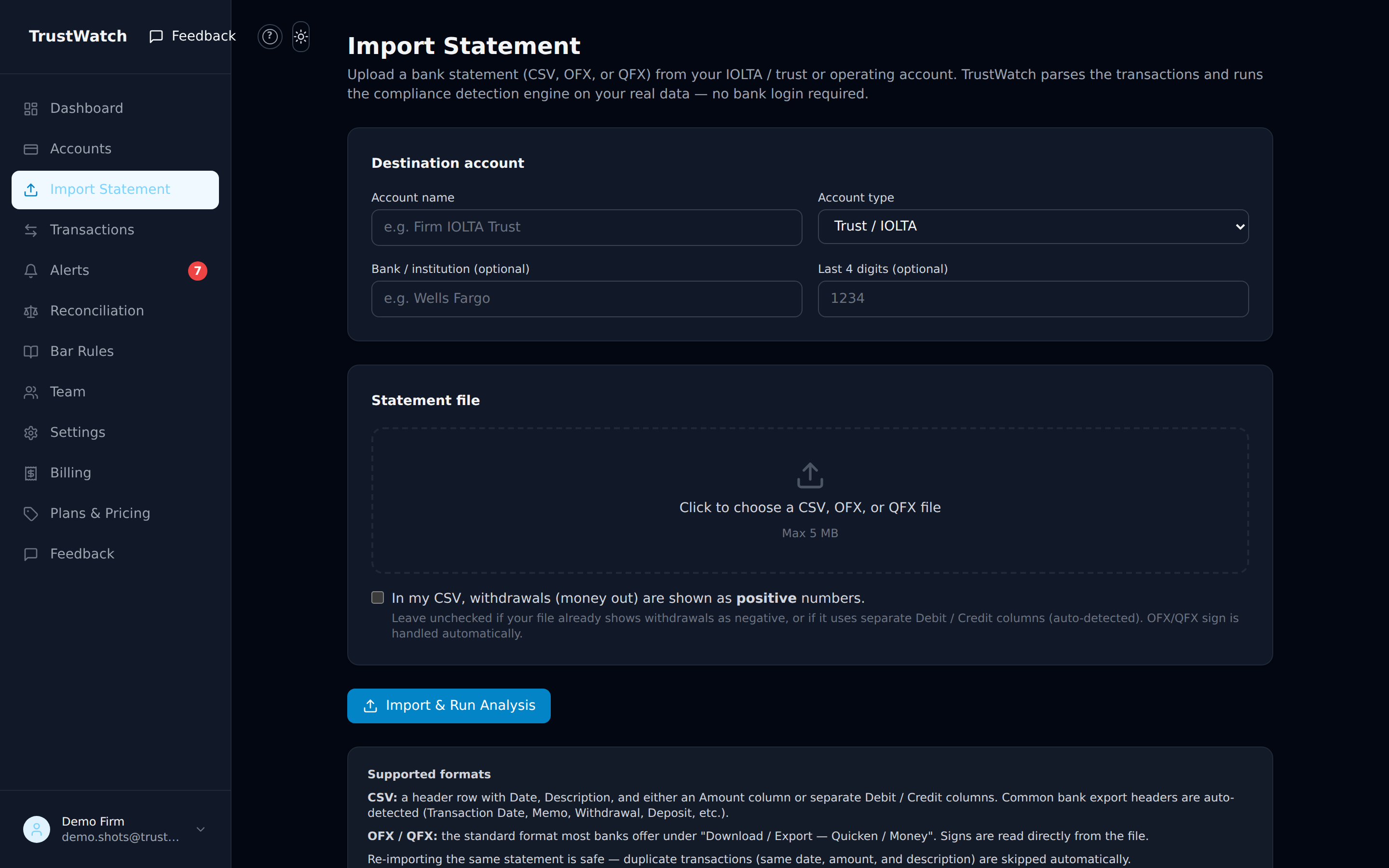
Import a bank statement — this is the normal way. Go to Import Statement in the sidebar:
- Log in to your bank's website and download recent activity for the trust account. Look for "Export" or "Download" — a CSV, OFX, or QFX file all work (OFX/QFX is often labeled "Quicken / Money").
- In TrustWatch, pick the destination account — or create one the first time (name it, choose Trust / IOLTA or Operating).
- Choose the file and click Import & Run Analysis. TrustWatch reads the transactions and immediately checks them against all the compliance rules.
Re-importing the same statement is safe — duplicates (same date, amount, and description) are skipped automatically. If your CSV shows withdrawals as positive numbers, tick the checkbox on the import page; separate Debit/Credit columns are detected automatically.
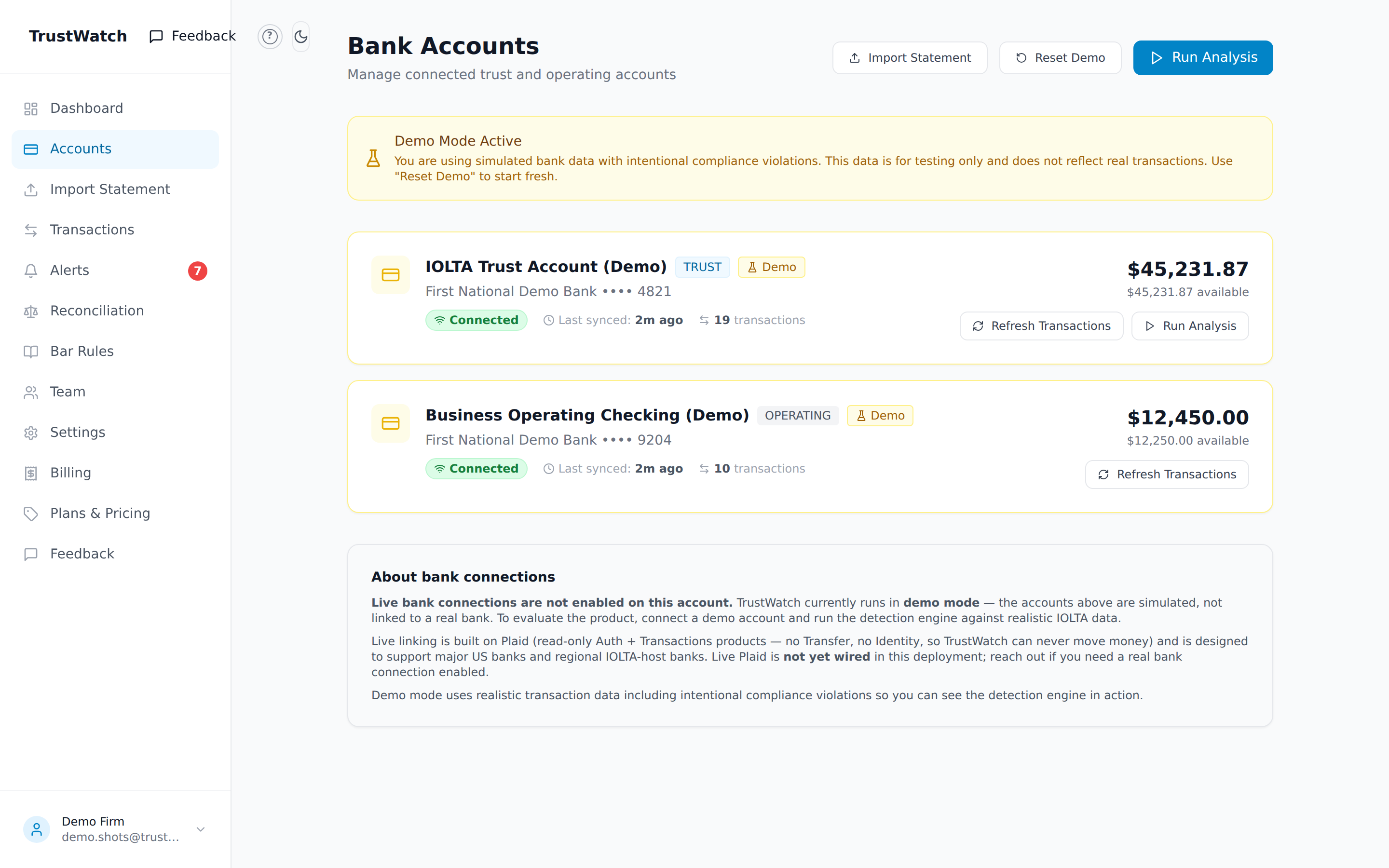
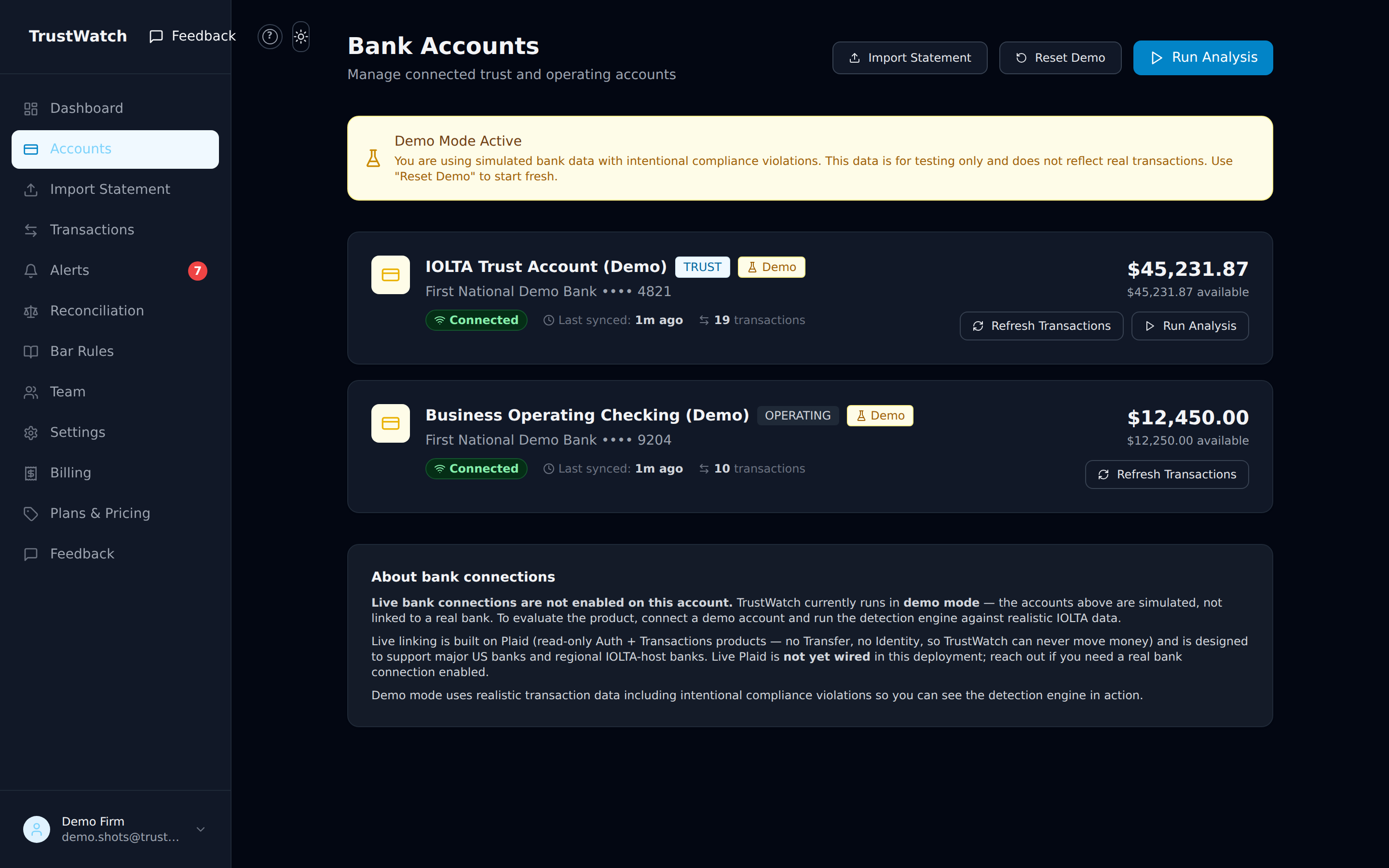
Want to practice first? Use demo mode. On the Accounts page, click Connect Trust Account to load a simulated account with realistic transactions — including deliberate violations — so you can see exactly what alerts look like without touching real data. Refresh Transactions adds more simulated activity; Reset Demo wipes the simulation and never touches real data.
Direct bank feeds: live read-only bank connections are rolling out and are not switched on yet. Today, importing a statement file is the supported way to monitor real numbers — you stay in control, and TrustWatch never sees your banking login.
How do I run a compliance check?
Click Run Analysis — it's on the Dashboard and on the Accounts page. TrustWatch scans the last 90 days of transactions against all six detection rules and your state's bar requirements, then files anything suspicious on the Alerts page.
- It also runs automatically every time you import a statement.
- Running it again is always safe — it never creates duplicate alerts for the same issue.
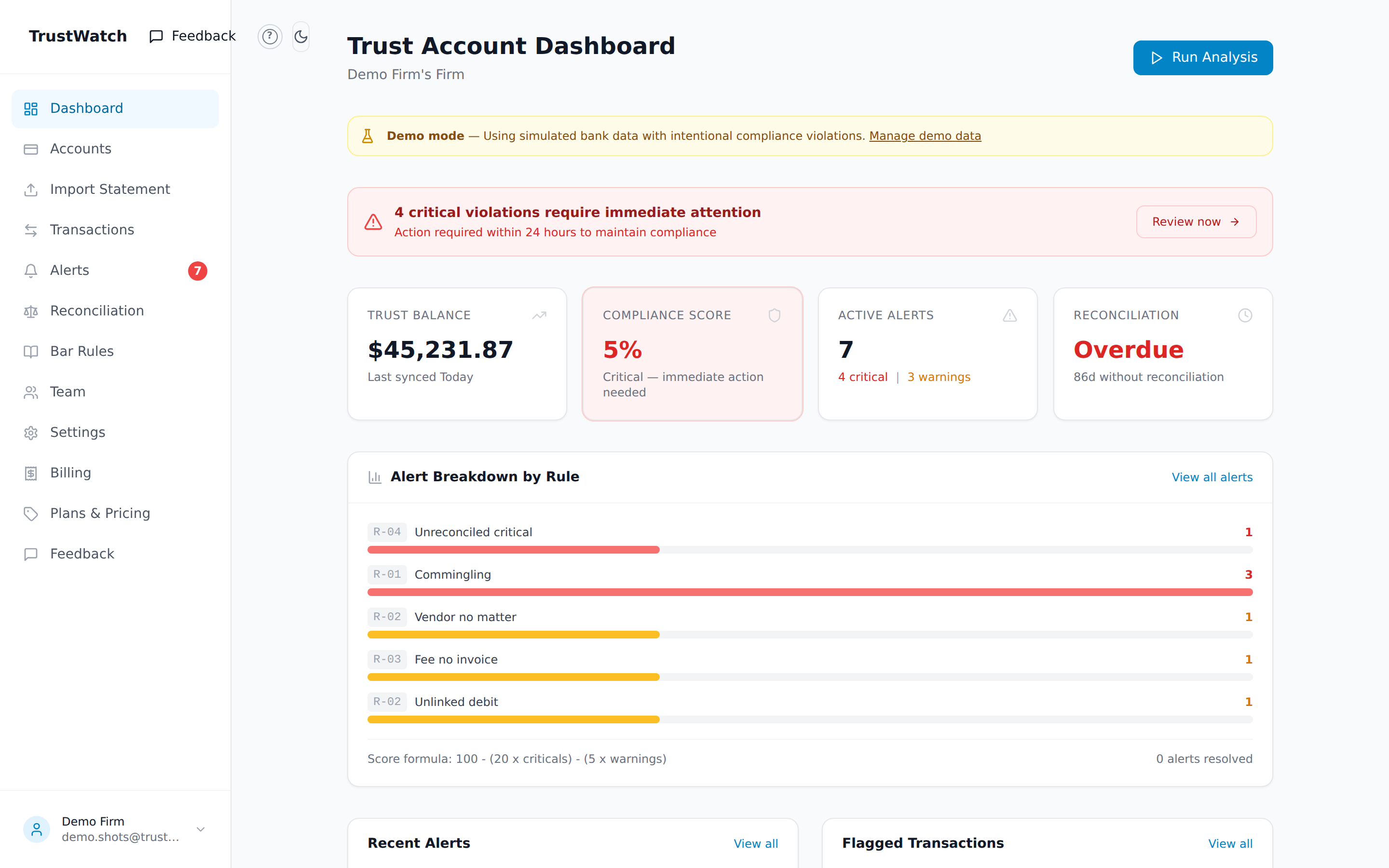
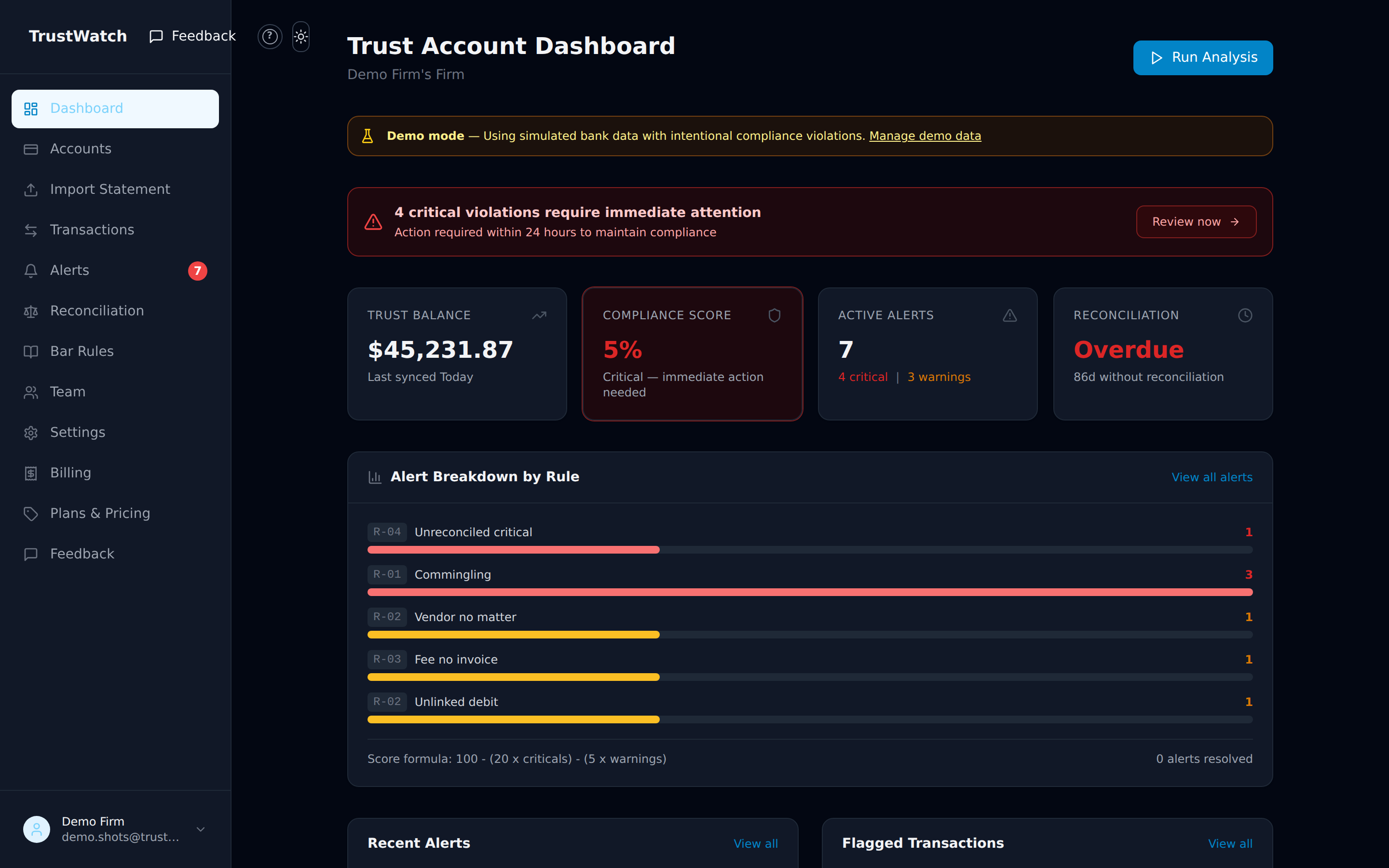
- The Compliance Score on the dashboard is a quick 0–100% health grade based on your open alerts: 90%+ is green, below 70% means something critical needs attention. Resolving alerts raises it.
What do the alerts mean?
Two severities:
- CRITICAL — deal with it today (e.g. personal spending from trust, or a negative balance).
- WARNING — review soon (e.g. a payment missing its client matter).
Six rules do the checking. In plain words:
- R-01 Commingling (critical) — personal or office spending paid from the trust account: groceries, streaming, utilities, payroll. The most serious violation.
- R-02 Vendor pull — a payment out of trust (court reporter, process server, or any sizable debit) with no client matter linked, so nobody can tell whose money paid for it.
- R-03 Fee without invoice — an attorney-fee withdrawal from trust with no matter linked (the matter link stands in for "there is an invoice").
- R-04 Reconciliation overdue — transactions have sat unreviewed longer than your state allows (e.g. 30 days in CA, 90 in PA). Warns as the deadline approaches, turns critical when it passes.
- R-05 Transfer cap — a disbursement bigger than the limit your firm set (a "you should double-check anything this large" rule).
- R-06 Balance floor — the trust balance fell below the floor your firm set. A negative balance is critical: it means one client's money covered another client's payment.
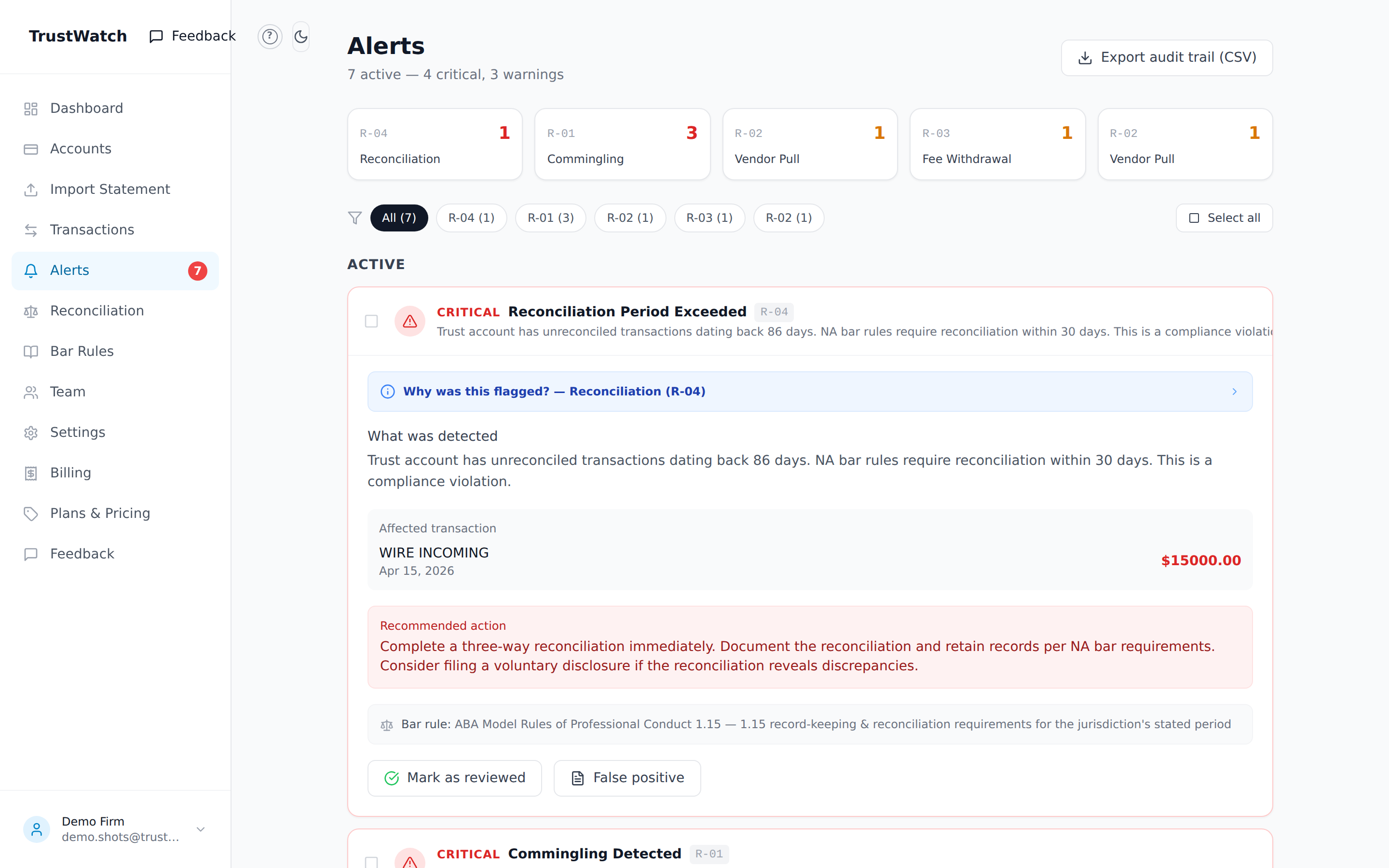
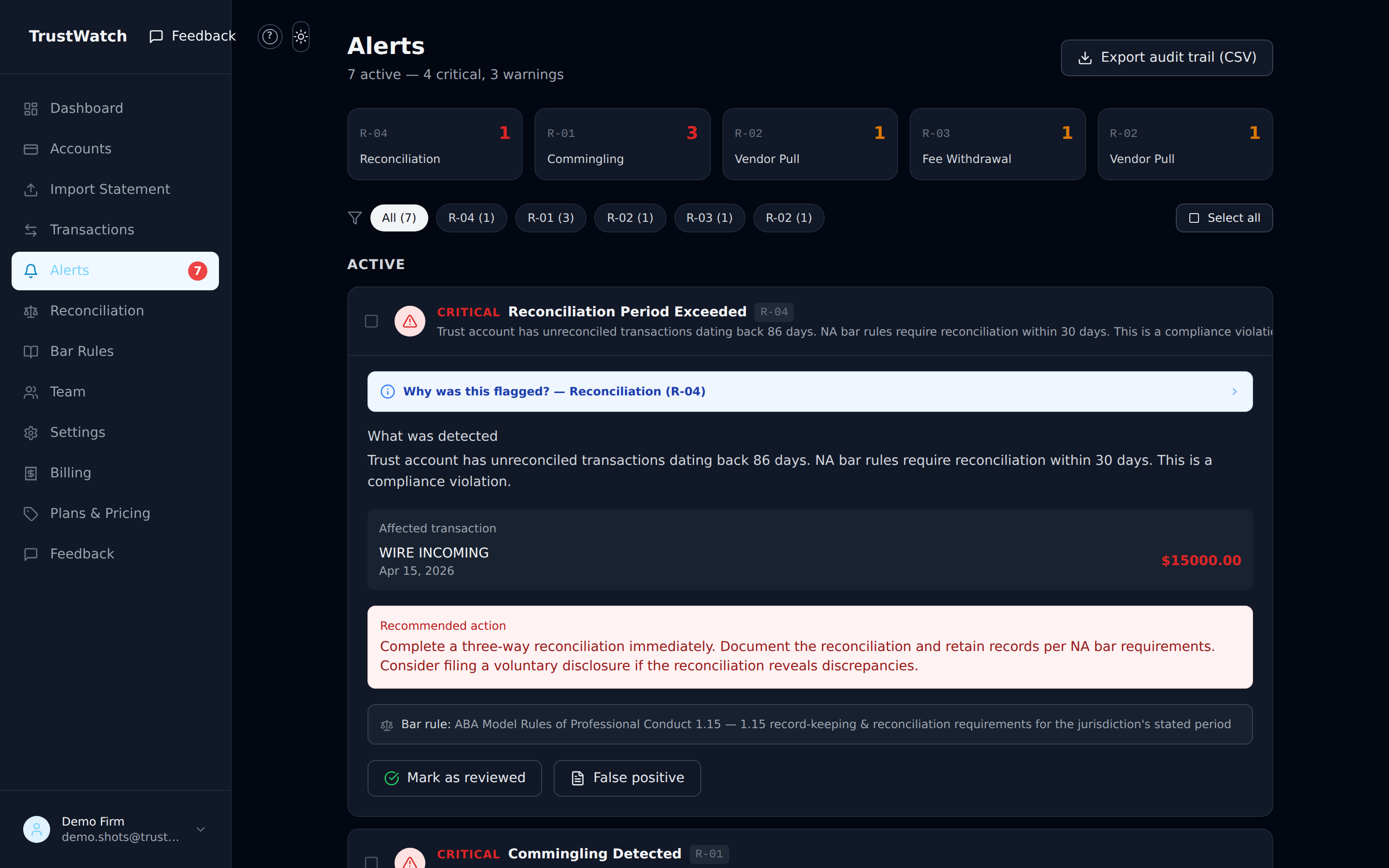
Every alert shows the specific bar-rule citation for your state (e.g. CA Rules of Professional Conduct 1.15), a "Why was this flagged?" explainer with examples, the affected transaction, and a recommended action.
How do I clear an alert?
- Open the Alerts page and click an alert to expand it. Read "What was detected" and the recommended action.
- If it's been handled (or was fine all along), click Mark as reviewed — or False positive if the rule fired on something legitimate. Both let you add a short note; notes are kept forever in the audit trail, which is exactly what an examiner wants to see.
- If the alert says a matter is missing (R-02 / R-03): go to Transactions, click the flagged row, and use Link matter ID to tie it to the client's case. That linkage is what those rules look for.
- For a reconciliation alert (R-04), Mark as reviewed checks off all the outstanding transactions on that account, so it clears on the next analysis run.
Several alerts at once? Use the checkboxes and Select all to resolve in bulk. And Export audit trail (CSV) (top right) downloads the complete record — every alert, citation, resolution, and note — ready to hand to an auditor or the bar.
How do I do the three-way reconciliation?
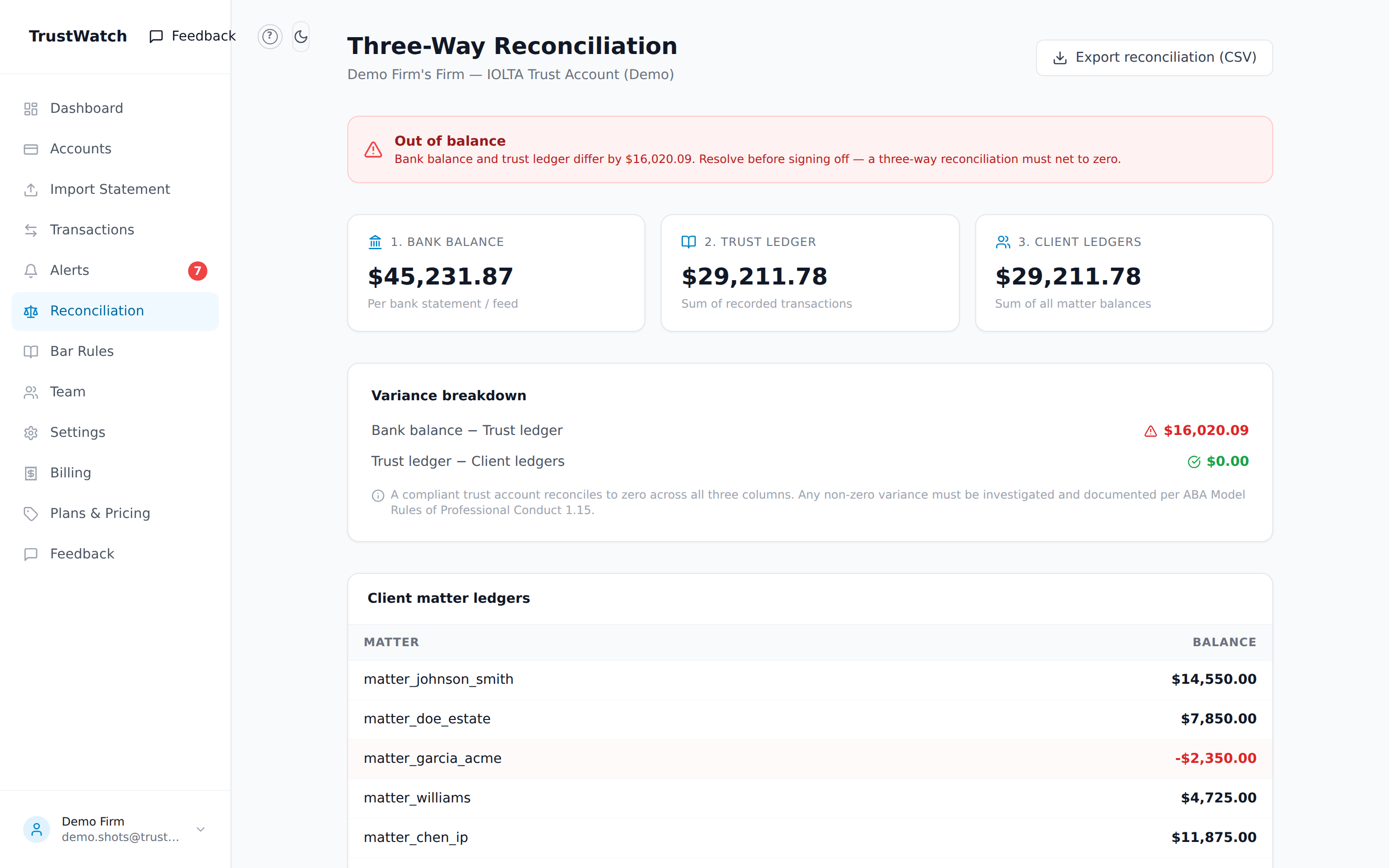
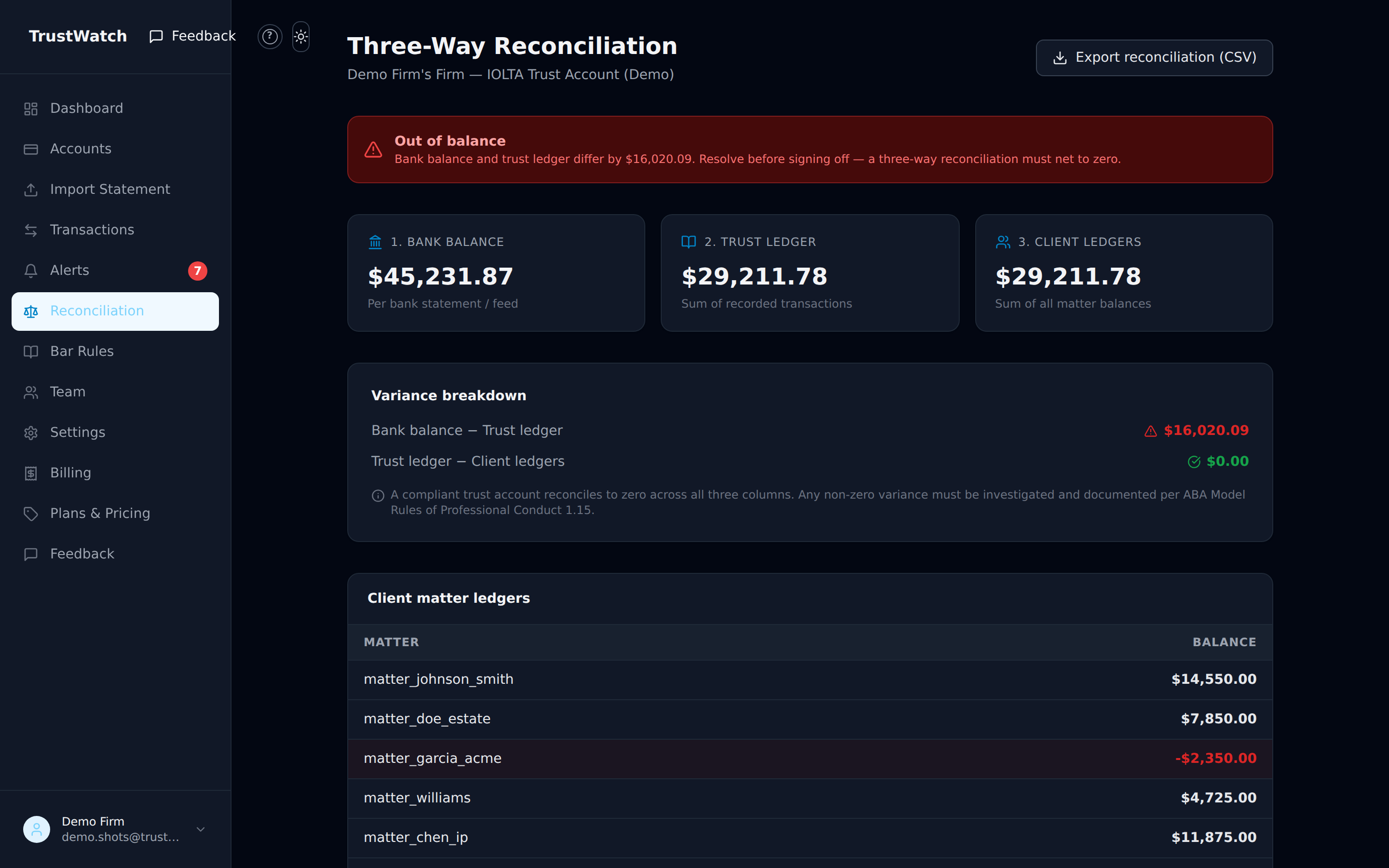
Open Reconciliation in the sidebar. TrustWatch compares three numbers that must agree:
- Bank balance — what the bank statement says the account holds.
- Trust ledger — what your recorded transactions add up to.
- Client ledgers — what all the per-client matter balances add up to.
When all three match, you get a green "Reconciled" banner. Any difference is shown in the variance breakdown and must be investigated before sign-off. Watch for two things in the client-ledger table: a negative matter balance (one client's money covered another's payment — serious), and Unallocated (money not tied to any client yet — fix it by linking matters on the Transactions page).
Export reconciliation (CSV) saves the whole comparison for your records.
How do I change what gets flagged?
On Settings, firm Admins can tune the dials (everyone else sees them read-only):
- Transfer maturity cap (R-05) — disbursements above this amount get flagged.
- Unlinked-debit threshold (R-02) — debits above this with no matter linked get flagged.
- Reconciliation warning threshold (R-04) — how early the warning fires, as a percentage of your state's deadline.
- Minimum trust balance floor (R-06) — set to $0 to turn this rule off.
You can also change the firm's state / jurisdiction (which picks the bar-rule library and reconciliation deadline) and your email alert preferences. New thresholds apply on the next analysis run. The Bar Rules page in the sidebar shows the full rule library for your state, with citations and common violations.
How do I add someone from my firm?
- Go to Team (Admins only) and enter the person's email.
- Pick a role: Admin (settings, billing, team), Attorney (review and resolve alerts, link matters), or Viewer (read-only — good for an outside bookkeeper or auditor).
- Click Send invite. If invite emails aren't being delivered, no problem — every invite also has a Copy link you can paste into your own email or chat. The link lets them create their account directly.
Seats connect to billing: 3 attorneys are included; each additional member or pending invite is +$19/mo. The Team page shows your live seat count and monthly total. The firm always keeps at least one Admin.
How does the trial and billing work?
Every firm starts with a 14-day free trial — no card required. After that, TrustWatch Base is $49/month for up to 3 attorneys, plus $19/month per additional attorney (example: a 5-attorney firm is $49 + 2 × $19 = $87/month).
Payment runs entirely through Stripe — card numbers never touch TrustWatch. Use Activate subscription on the Billing page to start, and Manage billing to change cards or cancel anytime.
Signing in, passwords & security
- Sign in at trustwatch.app with your email and password (or Google). Forgot your password? Use the Forgot password link on the sign-in page.
- You can change your password and enable two-factor authentication (a 6-digit code from your phone) under Settings. Recommended for everyone who can see financial data.
- Your firm's data is private to your firm — accounts, transactions, and alerts are never visible to anyone outside it. TrustWatch is read-only by design: it cannot move money or write anything back to your bank or books.
Still stuck?
Use the Feedback button (top of the sidebar, or the Feedback page) to send us a question, bug, or idea — screenshots welcome. It goes straight to the team.
TrustWatch is a monitoring and notification service, not legal, accounting, or fiduciary advice. Attorneys determine whether flagged transactions constitute bar-rule violations.